
# How to Speed Up a Slow Website on
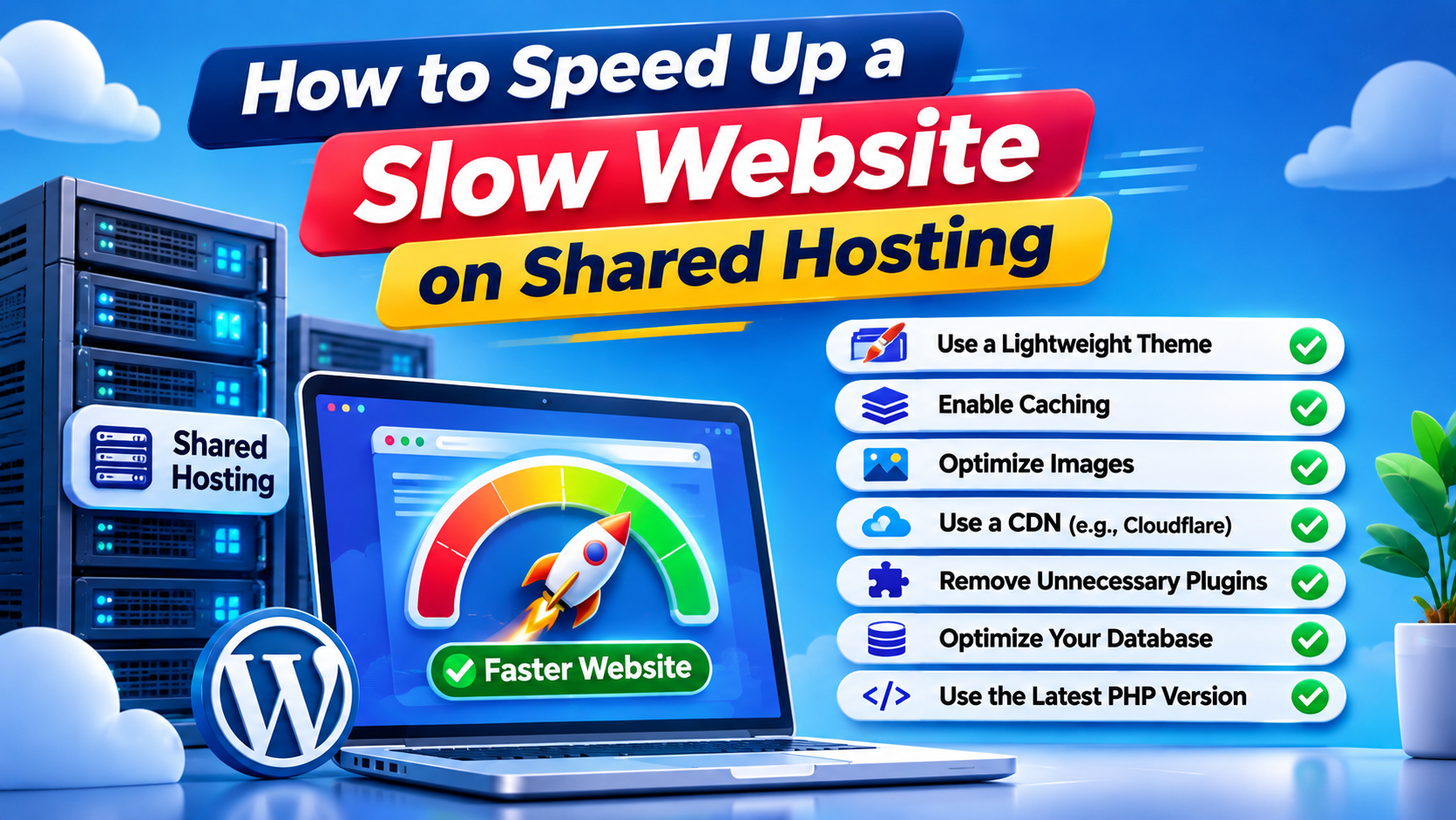 Shared Hosting
A slow website can frustrate visitors, reduce conversions, and negatively affect the user experience. If your website runs on shared hosting, you may sometimes experience slow loading times because multiple websites share the resources of the same server.
However, shared hosting does not automatically mean your website must be slow. With the right optimization techniques, you can significantly improve website performance without immediately upgrading to an expensive VPS or dedicated server.
In this guide, we will explain how to speed up a slow website on shared hosting using practical techniques that website owners and WordPress users can implement.
## 1. Choose a Lightweight WordPress Theme
Your website theme plays an important role in loading speed. Some themes include unnecessary animations, scripts, complex layouts, and additional features that increase page size.
If you use WordPress, consider a lightweight theme designed for performance. Avoid themes that load large amounts of JavaScript and CSS that your website does not need.
A lightweight theme reduces the amount of content the browser must download and process.
You should also remove unused page builders, design elements, and unnecessary theme features wherever possible.
## 2. Install a Reliable Caching Plugin
Caching is one of the most effective ways to improve website speed on shared hosting.
Without caching, a dynamic WordPress website may need to execute PHP code and query its database every time someone visits a page. This consumes server resources and can increase response times.
A caching plugin stores generated page content so that subsequent visitors can receive a prepared version instead of triggering the entire process again.
Popular options include:
- LiteSpeed Cache
- WP Super Cache
- W3 Total Cache
- WP Rocket
Choose a plugin compatible with your server environment. LiteSpeed Cache offers its fullest server-level caching benefits when the website runs on a compatible LiteSpeed server. Installing the plugin alone does not guarantee that server-level caching is active.
## 3. Optimize Website Images
Large images are among the most common reasons websites load slowly.
Uploading high-resolution images directly from a camera or design software can increase page size significantly. This makes visitors download more data, particularly on mobile connections.
To improve image performance:
- Compress images before uploading.
- Use modern formats such as WebP or AVIF where supported.
- Resize images to their actual display dimensions.
- Enable lazy loading for images below the visible area.
- Avoid unnecessarily large background images.
Image optimization can reduce page weight without noticeably affecting visual quality.
## 4. Use a Content Delivery Network (CDN)
A Content Delivery Network, or CDN, distributes cached website content through servers located in different geographical regions.
Instead of every visitor downloading static files directly from your hosting server, a CDN can deliver supported content from a nearby location.
Cloudflare is a popular CDN option that offers a free plan with features such as DNS management, content delivery, and basic security protections.
A CDN can reduce latency and help your website handle requests more efficiently. However, it does not automatically fix slow database queries or insufficient server resources.
## 5. Remove Unnecessary WordPress Plugins
Installing too many WordPress plugins can affect website performance, especially when plugins execute resource-intensive tasks on every page request.
Some plugins add JavaScript, CSS, database queries, external requests, or background processes.
Review your installed plugins and remove those you no longer use. Replace multiple plugins with a well-maintained alternative when practical.
Do not assume that every plugin slows down your website. The actual impact depends on its code, configuration, and how frequently it runs.
## 6. Optimize Your WordPress Database
WordPress stores posts, pages, settings, comments, and other information in a database. Over time, unnecessary data can accumulate.
Database optimization can help reduce overhead, particularly on websites with large databases or frequent content changes.
Consider cleaning up:
- Old post revisions
- Spam and trashed comments
- Expired transient data
- Unused database tables left by removed plugins
- Unnecessary scheduled tasks
Always create a database backup before performing cleanup. Avoid deleting database records manually unless you understand their purpose.
## 7. Enable the Latest PHP Version
PHP is the programming language used by WordPress and many other web applications.
Newer supported PHP versions can provide performance improvements, security fixes, and better resource efficiency compared with older versions.
Most modern hosting providers allow customers to change PHP versions through cPanel's MultiPHP Manager or a similar control panel.
Before upgrading, confirm that your WordPress theme and plugins support the selected PHP version. Test your website after making the change.
## 8. Monitor Shared Hosting Resource Usage
Sometimes, a slow website is not caused by poorly optimized content. It may be related to the hosting account reaching its resource limits.
Shared hosting providers often impose limits on CPU usage, memory, concurrent processes, and other resources.
You can investigate these limits through cPanel's Resource Usage interface if your hosting provider makes it available.
If your account repeatedly reaches CPU or memory limits, optimization alone may not solve the problem. Contact your hosting provider to investigate the cause or consider a higher hosting plan.
## 9. Test Your Website Speed Regularly
Website optimization should be based on measurements rather than assumptions.
Use tools such as Google PageSpeed Insights and GTmetrix to identify performance problems.
Pay attention to:
- Largest Contentful Paint (LCP)
- Interaction to Next Paint (INP)
- Cumulative Layout Shift (CLS)
- Time to First Byte (TTFB)
- Total page size and number of requests
Test important pages on both mobile and desktop. Compare results before and after making changes.
## Final Thoughts
Speeding up a slow website on shared hosting does not always require purchasing a more expensive hosting plan.
Start by optimizing images, enabling appropriate caching, removing unnecessary plugins, using a lightweight theme, and keeping PHP updated. A CDN and database cleanup can provide additional improvements.
However, if your website continues to experience slow response times because of CPU, memory, or server resource limitations, it may be time to upgrade to a more powerful hosting environment.
**The best approach is to optimize your website first, measure the results, and upgrade your hosting only when the available resources are no longer sufficient.**
A slow website can frustrate visitors, reduce conversions, and negatively affect the user experience. If your website runs on shared hosting, you may sometimes experience slow loading times because multiple websites share the resources of the same server.
However, shared hosting does not automatically mean your website must be slow. With the right optimization techniques, you can significantly improve website performance without immediately upgrading to an expensive VPS or dedicated server.
In this guide, we will explain how to speed up a slow website on shared hosting using practical techniques that website owners and WordPress users can implement.
## 1. Choose a Lightweight WordPress Theme
Your website theme plays an important role in loading speed. Some themes include unnecessary animations, scripts, complex layouts, and additional features that increase page size.
If you use WordPress, consider a lightweight theme designed for performance. Avoid themes that load large amounts of JavaScript and CSS that your website does not need.
A lightweight theme reduces the amount of content the browser must download and process.
You should also remove unused page builders, design elements, and unnecessary theme features wherever possible.
## 2. Install a Reliable Caching Plugin
Caching is one of the most effective ways to improve website speed on shared hosting.
Without caching, a dynamic WordPress website may need to execute PHP code and query its database every time someone visits a page. This consumes server resources and can increase response times.
A caching plugin stores generated page content so that subsequent visitors can receive a prepared version instead of triggering the entire process again.
Popular options include:
- LiteSpeed Cache
- WP Super Cache
- W3 Total Cache
- WP Rocket
Choose a plugin compatible with your server environment. LiteSpeed Cache offers its fullest server-level caching benefits when the website runs on a compatible LiteSpeed server. Installing the plugin alone does not guarantee that server-level caching is active.
## 3. Optimize Website Images
Large images are among the most common reasons websites load slowly.
Uploading high-resolution images directly from a camera or design software can increase page size significantly. This makes visitors download more data, particularly on mobile connections.
To improve image performance:
- Compress images before uploading.
- Use modern formats such as WebP or AVIF where supported.
- Resize images to their actual display dimensions.
- Enable lazy loading for images below the visible area.
- Avoid unnecessarily large background images.
Image optimization can reduce page weight without noticeably affecting visual quality.
## 4. Use a Content Delivery Network (CDN)
A Content Delivery Network, or CDN, distributes cached website content through servers located in different geographical regions.
Instead of every visitor downloading static files directly from your hosting server, a CDN can deliver supported content from a nearby location.
Cloudflare is a popular CDN option that offers a free plan with features such as DNS management, content delivery, and basic security protections.
A CDN can reduce latency and help your website handle requests more efficiently. However, it does not automatically fix slow database queries or insufficient server resources.
## 5. Remove Unnecessary WordPress Plugins
Installing too many WordPress plugins can affect website performance, especially when plugins execute resource-intensive tasks on every page request.
Some plugins add JavaScript, CSS, database queries, external requests, or background processes.
Review your installed plugins and remove those you no longer use. Replace multiple plugins with a well-maintained alternative when practical.
Do not assume that every plugin slows down your website. The actual impact depends on its code, configuration, and how frequently it runs.
## 6. Optimize Your WordPress Database
WordPress stores posts, pages, settings, comments, and other information in a database. Over time, unnecessary data can accumulate.
Database optimization can help reduce overhead, particularly on websites with large databases or frequent content changes.
Consider cleaning up:
- Old post revisions
- Spam and trashed comments
- Expired transient data
- Unused database tables left by removed plugins
- Unnecessary scheduled tasks
Always create a database backup before performing cleanup. Avoid deleting database records manually unless you understand their purpose.
## 7. Enable the Latest PHP Version
PHP is the programming language used by WordPress and many other web applications.
Newer supported PHP versions can provide performance improvements, security fixes, and better resource efficiency compared with older versions.
Most modern hosting providers allow customers to change PHP versions through cPanel's MultiPHP Manager or a similar control panel.
Before upgrading, confirm that your WordPress theme and plugins support the selected PHP version. Test your website after making the change.
## 8. Monitor Shared Hosting Resource Usage
Sometimes, a slow website is not caused by poorly optimized content. It may be related to the hosting account reaching its resource limits.
Shared hosting providers often impose limits on CPU usage, memory, concurrent processes, and other resources.
You can investigate these limits through cPanel's Resource Usage interface if your hosting provider makes it available.
If your account repeatedly reaches CPU or memory limits, optimization alone may not solve the problem. Contact your hosting provider to investigate the cause or consider a higher hosting plan.
## 9. Test Your Website Speed Regularly
Website optimization should be based on measurements rather than assumptions.
Use tools such as Google PageSpeed Insights and GTmetrix to identify performance problems.
Pay attention to:
- Largest Contentful Paint (LCP)
- Interaction to Next Paint (INP)
- Cumulative Layout Shift (CLS)
- Time to First Byte (TTFB)
- Total page size and number of requests
Test important pages on both mobile and desktop. Compare results before and after making changes.
## Final Thoughts
Speeding up a slow website on shared hosting does not always require purchasing a more expensive hosting plan.
Start by optimizing images, enabling appropriate caching, removing unnecessary plugins, using a lightweight theme, and keeping PHP updated. A CDN and database cleanup can provide additional improvements.
However, if your website continues to experience slow response times because of CPU, memory, or server resource limitations, it may be time to upgrade to a more powerful hosting environment.
**The best approach is to optimize your website first, measure the results, and upgrade your hosting only when the available resources are no longer sufficient.**